How to download Facebook videos online on iPhone or iPad
Looking for the simplest way to save Facebook videos to your iPhone? Since the official Facebook app doesn't support direct downloads, many iOS users face technical hurdles. In this article, I will introduce and guide you on how to use SaveFB – a tool that helps you download high-quality Facebook videos to your Photos app without any complex setup.
SaveFB is an online Facebook downloader that helps iPhone and iPad users easily overcome iOS restrictions. It allows you to download Facebook videos instantly right within the Safari browser, eliminating the need for third-party software or untrusted apps while ensuring maximum speed.
Acquire the Facebook Video URL
Note: To initiate the download on iOS, your first priority is capturing the video's direct link. Follow these simple steps to secure the correct URL:
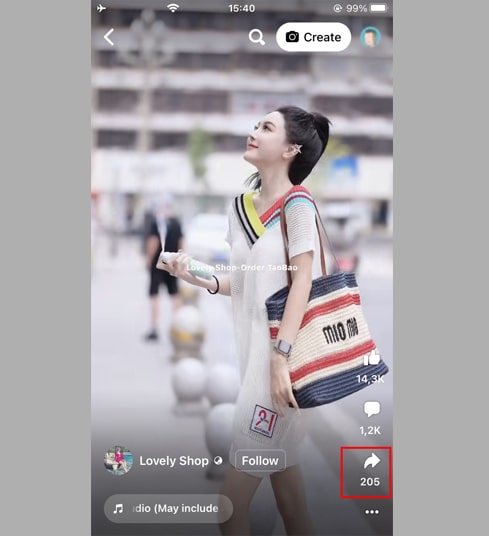
Step 1: Access the Facebook application, find the specific clip you want to save, and tap the Share icon.
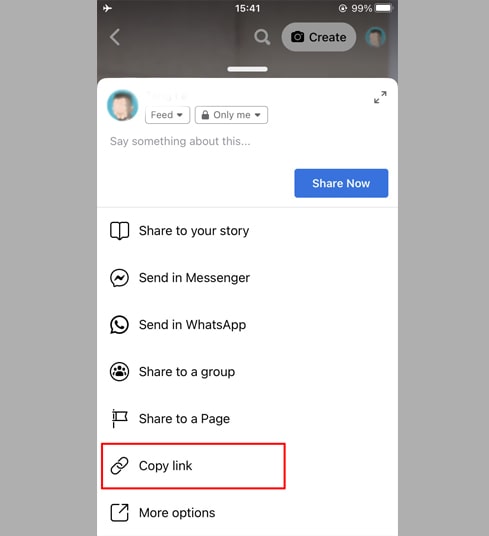
Step 2: From the options menu, choose Copy link to store the URL in your clipboard.
With the URL ready, you can now proceed with either of the two reliable methods below to finalize the download to your iOS device.
Method 1: Compatibility: iOS 13+ & iPadOS 13+ (Universal Support)
Since the launch of iOS 13 and iPadOS 13, Safari features an integrated Download Manager. This powerful tool enables direct file downloads within the browser, allowing you to track, organize, and delete your saved media seamlessly. All downloaded Facebook videos are automatically synchronized with the Files app, ensuring easy access across your entire mobile ecosystem.
Guide to downloading Facebook videos via Safari:
Step 1: Launch the Safari browser on your iOS device and navigate to Savefb.to.
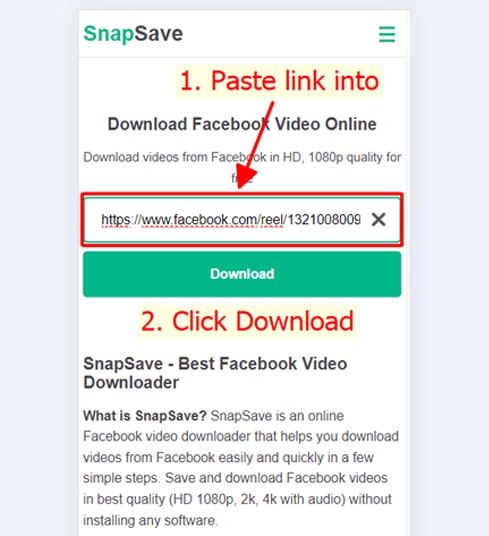
Step 2: Insert the copied video URL into the toolbox and trigger the Download process.
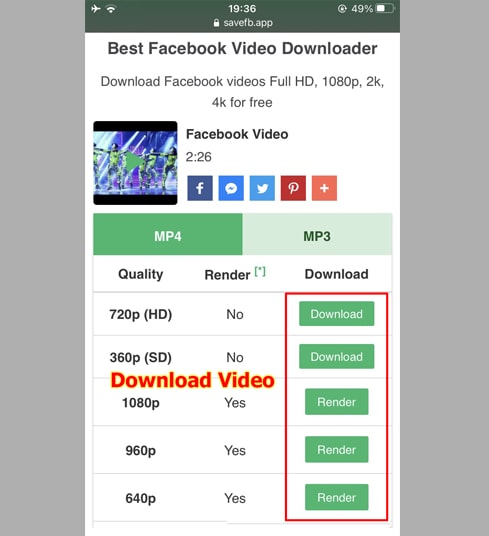
Step 3: Pick your desired MP4 or MP3 resolution, tap Download or Render, and allow the system a few moments to generate your file.
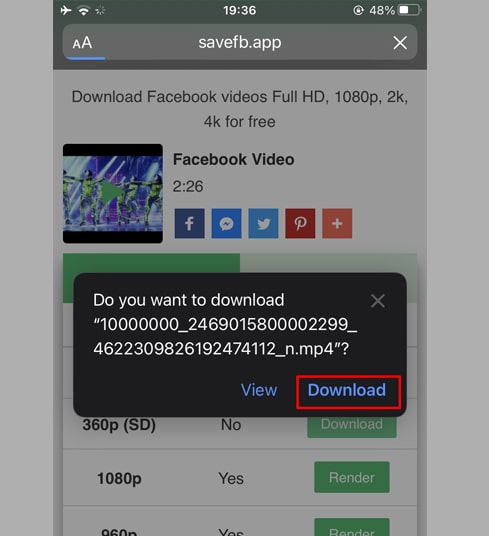
Step 4: When the iOS download prompt appears, confirm by tapping Download again.
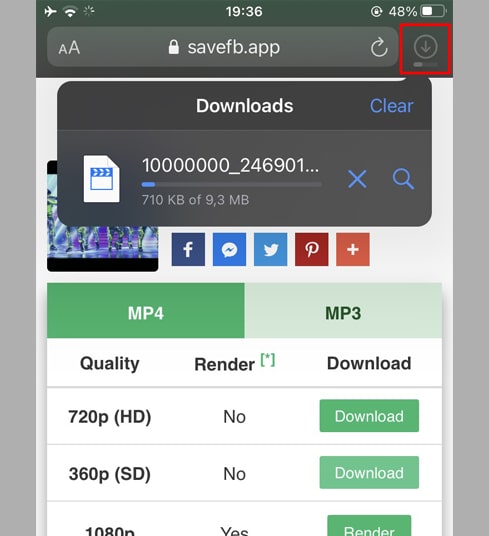
Step 5: Monitor the download status via the progress icon at the top of the Safari interface.
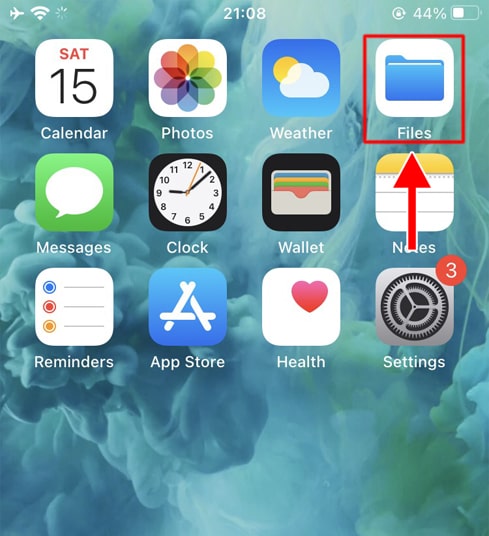
Step 6: Once finished, navigate to the Files application on your iPhone and enter the Downloads folder to locate your video.
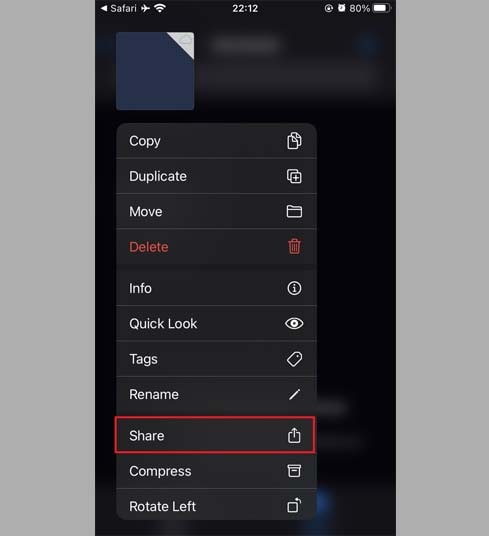
Step 7: Long-press on the video file to trigger the context menu, then select Share.
Step 8: Locate and tap the 'Save Video' option from the list.
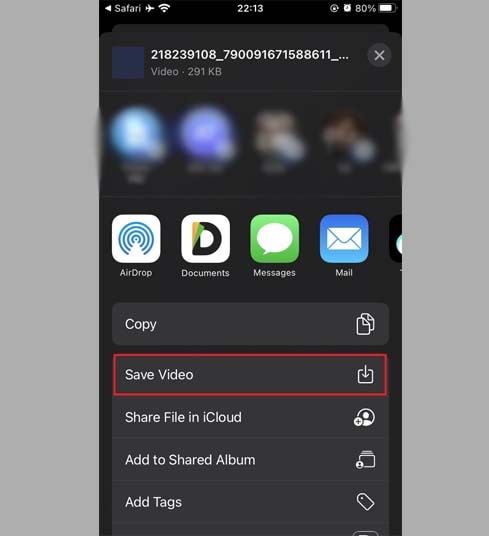
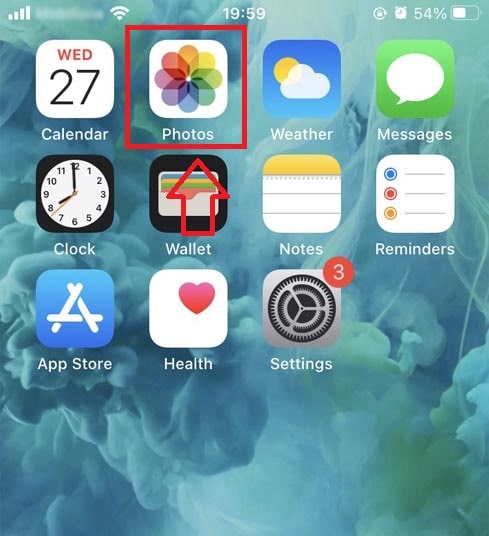
Step 9: Your video is now available in the Photos app for instant viewing.
Method 2: Alternative: Using 'Documents by Readdle' (For iOS 12 and Legacy Devices)
For older iOS versions, we recommend Documents by Readdle. This versatile, free app acts as a secure hub for downloading and organizing Facebook media on almost any iPhone model.
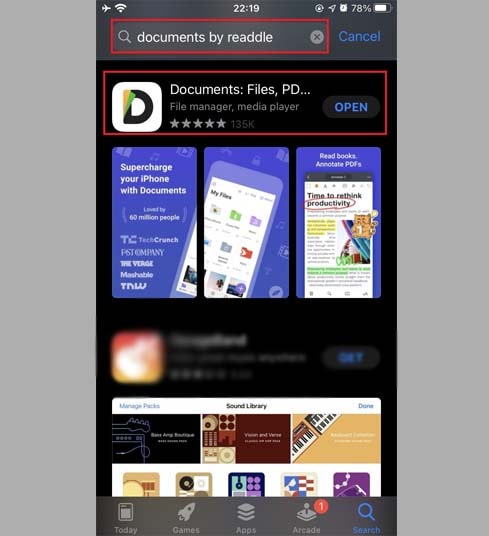
Step 1: Installation: Get 'Documents by Readdle' from the App Store
- Open the App Store on your iPhone and install Documents by Readdle to enable advanced file handling.
- Activation: Initialize the App Interface
Step 2: Launch the application and prepare to visit Savefb.to within its internal browsing environment.
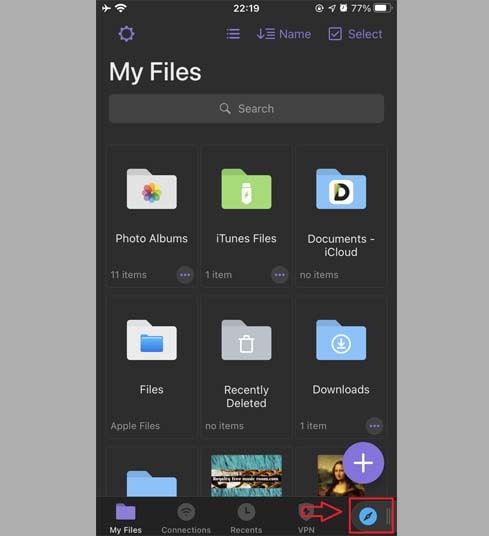
Browsing: Access the Built-in Web Browser. Look for the compass icon (located in the bottom right on iPhone or the left sidebar on iPad) to open the web interface.
Step 3: Execution: Download the Media. Input the link and tap Download to begin fetching the media.
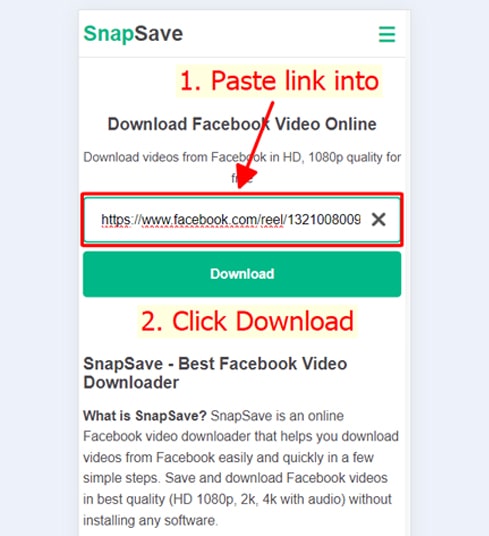
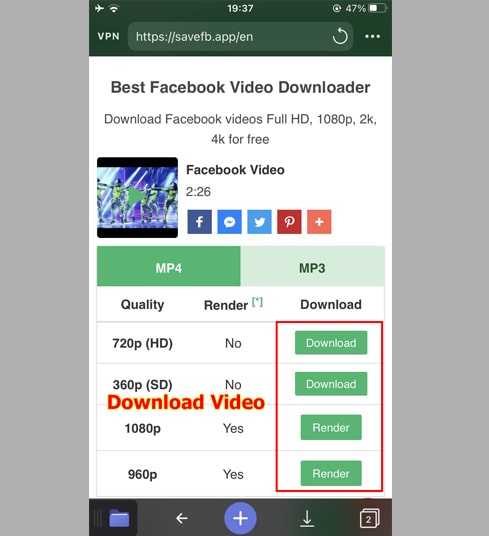
Step 4: Pick your desired MP4 or MP3 resolution, tap Download or Render, and allow the system a few moments to generate your file.
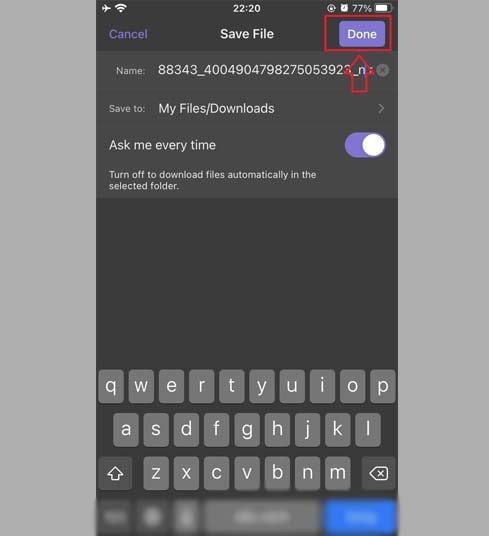
Step 5: Finalization: Customize the file name to your preference and select Done to confirm the local save.
Step 6: Organization: Relocate the Media to your Photo Library
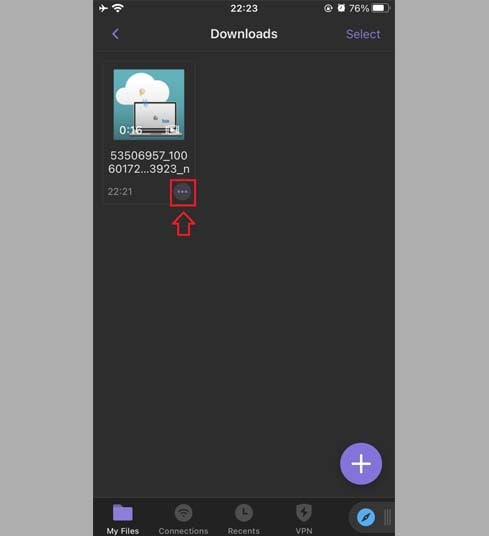
- Tap the My Files folder at the bottom right to view your current download progress.
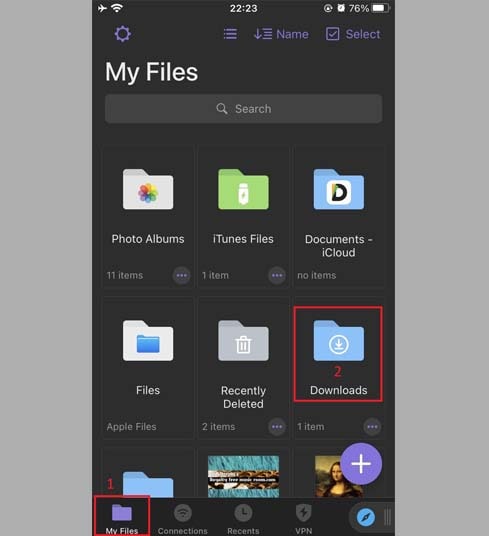
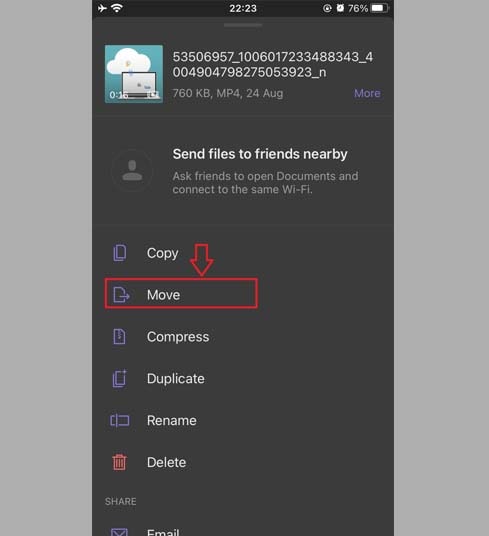
- Inside the Downloads folder, tap the ellipsis (three dots) icon next to your video. Select Move and target the Photos destination to sync it with your gallery for offline enjoyment.
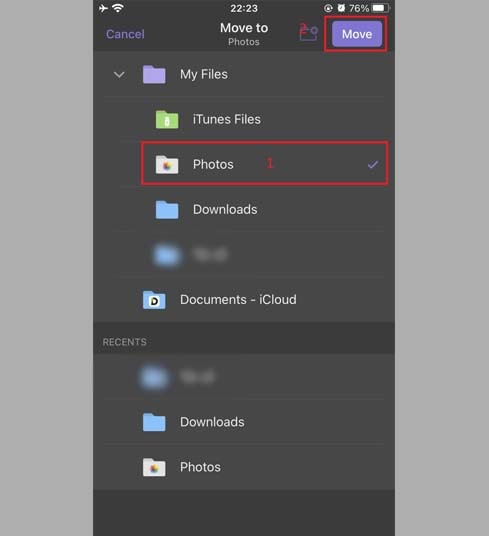
Step 7: Your video is now available in the Photos app for instant viewing.
- Note for HD+ Content: To maintain maximum quality, high-definition Facebook videos require SaveFB to process visuals and audio separately before merging them. This advanced rendering may take a few moments to finalize.
- Encountered a 'Private Video' error? Don't worry, simply switch to our specialized Facebook Private Downloader tool and follow the steps to unlock and save the content easily.
- If you encounter any problems while using SaveFB, please contact us immediately for assistance: contact@savefb.to